TORCH
Audio Workstation  ·  Version 7.0
Linear Recording
Arrangement + Mixer
Pattern Based
Step Sequencer + Editor
Default
Standard Layout
TORCH
AUDIO WORKSTATION
POSITION
001.01.000
TIME
00:00:00
BPM
124
PPQ
960
STATUS
IDLE
START
1
END
128
SIG
4/4
METRONOME
V1.0.4
TRACKS
S
E
MASTER
85%
L
-∞
R
-∞
CLIP
LIMIT
Grid
Strength 80%
Groove
MPC60
MPC60
SP12
909
DILLA
NONE
APPLY ALL
APPLY ALL
SELECTION
TRACK
PIANO ROLL
GROOVE
AUTO
MIDI KEYS
4
VEL 100
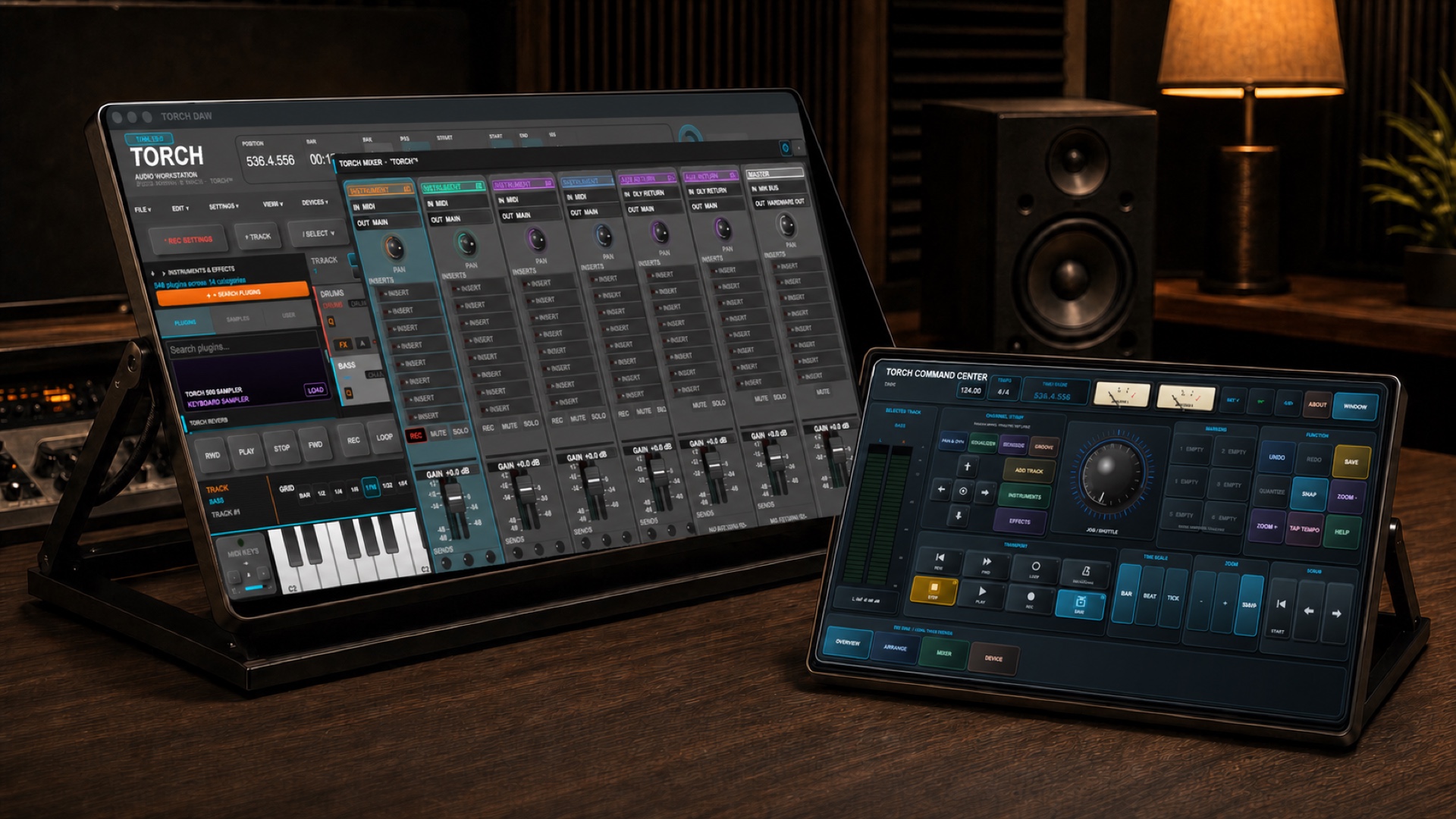
TORCH MIXER
TORCH CONSOLE
PRESET
— SELECT PRESET —
POWER
EQUALIZER
TORCH // PRO PIANO ROLL
SNAP
BARS
▶ NO TRACK POS: 1.1.1 BPM: 124 · NO INSTR
CHORD LIBRARY
CLICK TO AUDITION · DRAG TO GRID
NOTE VELOCITY MIXER
TORCH_SEQ // STEP SEQUENCER

TORCH_SEQ

Resolution
Tempo 124.0 BPM
TORCH SAMPLER
BANKS
A
B
C
D
Drag audio onto pads • MIDI 36–51
⚡ COMMIT 16 TRACKS
TORCH SAMPLER
SAMPLER
PADS
ENGINE // ANALOG
READY
INSTRUMENT
SAMPLER
ATTACK
DECAY
RELEASE
FILTER
DRUM BANKS
A
B
C
D
Drag audio files onto pads • MIDI 36–51
KEYS: A-S-D-F-G-H-J-K-L → C4–E5  |  MIDI IN ACTIVE  |  DRAG SAMPLE IN SAMPLER MODE
Q-STUDIO // FX RACK NO TRACK
Q-Studio FX Rack
Global Chains
PWR
Q-EQ PRO
Frequency Curve
0.0 dB
Low
Mid-L
Mid-H
High
FLAT
PWR
Q-COMP
Dynamics Meter
-0.0 dB
Thresh
Ratio
Attack
Makeup
INIT
PWR
Q-SPACE
Room Profile
Cathedral
Size
Decay
Tone
Mix
INIT
PWR
Q-DELAY
Echo Feedback
1/8 Dot
Time
Fdbk
Tone
Mix
INIT
PWR
Q-LIMIT
Peak Ceiling
-0.1 dB
Ceil
Gain
Rel
Look
INIT
⌗ GROOVE ENGINE
MPC60 GROOVE
SWING:50% GATE:50%
50% 50% ±10% 0ms
TORCH GROOVE ENGINE // SWING · FEEL · HUMANIZE
MPC60 GROOVE
SWING:50% GATE:50%
50%
SWING
0ms
FEEL
±10%
VELOCITY
50%
GATE
PPQ
🔌 EXTERNAL ROUTING  ·  Virtual MIDI + Audio Bridge
↺ REFRESH
SIGNAL CHAIN   Browser  Virtual MIDI  Kontakt  Virtual Audio  Browser  DAW  |  Windows: loopMIDI + VoiceMeeter  ·  macOS: IAC Driver + BlackHole
MIDI OUTPUT
Route browser keys → virtual MIDI port → Kontakt
No virtual MIDI port selected
MIDI CHANNEL
TX — no data
AUDIO INPUT
Capture Kontakt output via virtual audio cable
No virtual audio device selected
INPUT LEVEL
No audio stream active
RECORD RETURN
Capture Kontakt audio stream as WAV — drag into DAW timeline
Arm audio input first, then click REC to capture Kontakt output
SETUP GUIDE
Windows
1. Install loopMIDI (MIDI bridge)
2. Install VoiceMeeter Banana (audio bridge)
3. Set Kontakt MIDI in → loopMIDI Port
4. Set Kontakt audio out → VoiceMeeter Input
5. Select above ↑ and click MONITOR
macOS
1. Open Audio MIDI Setup → IAC Driver → enable
2. Install BlackHole 2ch (audio bridge)
3. Set Kontakt MIDI in → IAC Driver Bus 1
4. Set Kontakt audio out → BlackHole 2ch
5. Select above ↑ and click MONITOR
Add Track
Set Start Bar
1
Set BPM
124
About TORCH DAW
Creator & Visionary
Shawn A. Rogers
aka MARKUS FIRE
Version
V 5.0
© 2025 Shawn A. Rogers · All Rights Reserved
First Sample-Based DAW Built By AI

TORCH
DAW

Professional Audio Workstation
Load any sample. Transform it into a full
chromatic instrument. Compose. Create.
What Is TORCH DAW
A fully professional browser-based DAW featuring 10 instruments, a full Mixer, Piano Roll, Step Sequencer, FX Rack, Arrangement window, and real-time collaboration. Load any sample — TORCH turns it into a complete playable instrument across every key. Arrange. Mix. Record. Render. No install. No limits.
Special Thanks To Claude
Special thanks to Claude by Anthropic — for patience, precision, and a collaboration that made the impossible feel inevitable. Every line of this DAW carries that partnership.
Built Entirely By AI — A Historic First
TORCH DAW was conceived, directed, and built entirely through AI collaboration by a creator with no formal coding background. Every module, every algorithm, every pixel of design was brought to life through natural language and pure vision. This is the first professional-grade sample-based DAW in history built this way.
Claude — Anthropic Gemini — Google ChatGPT — OpenAI
"This is dedicated to all Singers and Players of Instruments —
The Almighty springs are in thee.
Take your sound. Make it an instrument. Create."
📁 SET FILE LOCATION
SAVE LOCATION
Not set
Save location is optional. Change it anytime via File → Change Save Location.
⬇ RENDER AUDIO
WAV
Lossless · 24-bit · 44.1kHz
MP3
Compressed · 320kbps · Smaller
SAMPLE RATE
BIT DEPTH
CHANNELS
Downloads folder (no location set)
Sample Rate
48,000 Hz
Bit Depth
24-bit
Duration
— bars
BPM
READY TO RENDER
⏺ Recording Settings
01Count-In Before Recording
None
1 Bar
2 Bars
4 Bars
Metronome clicks this many bars before recording starts. Lets you get ready before the first beat.
02Loop Record Mode
Lane Recording
Each loop pass creates a new lane under the same track. Every take is visible and independent — nothing is ever overwritten.
02bAuto-Arm New Lanes
Auto-Arm
Manual Only
When OFF (default), new lanes created on loop are not armed — you must press R on a lane to record into it. When ON, each new loop lane is automatically armed and begins recording immediately.
03Pre-Roll (Playback Preview)
None
1 Bar
2 Bars
Playback starts this many bars before the loop start point so you can hear context before recording.
04Metronome During Recording
Always On
Count-In Only
Off
Controls when the click track plays. "Count-In Only" silences it once recording begins.
🏠Welcome
🎹Instruments
🎙Recording
🎛MIDI
🎵Piano Roll
Sequencer
🎚Mixer & FX
FX Rack
📐Arrangement
Transport
Render / Export
💾Save & Session
🌐Collaboration
📁Browser & Samples
🔌External MIDI / VST
Shortcuts
Welcome to TORCH DAW
Professional DAW — Built entirely by AI
🏠What is TORCH DAW?
TORCH DAW is a full-featured professional Digital Audio Workstation — the world's first sample-based DAW built entirely through AI collaboration.
It includes 10 instruments, an Arrangement window, Mixer, Piano Roll, Step Sequencer, FX Rack, Q-Groove quantizer, Render engine, and real-time collaboration.
All your MIDI devices connect automatically — just plug them in. Microphone and camera permissions are requested once and cached for the session.
Tip: Use the left sidebar to explore each section. Start with Instruments to learn what's available, or jump straight to Recording.
Quick Start — Make your first sound in 60 seconds
1
Open any instrument from the module tabs at the top — try Torch Keys, Torch Drums, or X-Sampler Pro.
2
Click any key on the on-screen keyboard to hear sound. Use your computer keyboard: A S D F G H J = white keys.
3
Press Spacebar to start playback. Press again to stop.
4
Press R to arm recording, then Spacebar to capture your performance.
🎹The 10 Instruments at a Glance
1
X-Sampler Pro — Load any audio sample and play it chromatically across all 88 keys.
2
MIDI Drum — Hardware-style drum machine with pads and MIDI I/O.
3
Torch Drums — Built-in drum kit with step programming and live pad play.
4
Torch Keys — Piano and keyboard instrument with velocity and expression.
5
Torch Bass — Bass instrument with dedicated bass presets and tone shaping.
6
Torch Guitar — Guitar instrument with strumming and chord modes.
7
Torch Voice — Vocal instrument — load any vocal and play it as a pitched instrument.
8
Torch Synth — Synthesizer with oscillators, ADSR, filter, and built-in presets.
9
Torch World — World and ethnic instrument collection for global sounds.
10
Torch Physical Modelling Synth — Advanced physically modelled synthesis for realistic acoustic instrument tones.
Instruments
All 10 TORCH DAW instruments — what they do and how to use them
🎛X-Sampler Pro
The core instrument engine. Load any audio file (WAV, MP3, OGG, FLAC, AIFF) and it auto-maps across all 88 keys at pitch-shifted intervals.
Controls: ADSR envelope (Attack, Decay, Sustain, Release), Filter (cutoff + resonance), Pitch, Volume, and Pan.
Use the SAVE / LOAD buttons to save and recall sampler presets. Use BUILD to render the current sample map.
Drag any sample from the Browser or your file system directly onto the X-Sampler Pro window to load it instantly.
Power move: Load a single sung vowel or a guitar chord — X-Sampler Pro turns it into a full playable instrument across every key.
🥁MIDI Drum
A hardware-style drum machine with 16 velocity-sensitive pads, full MIDI input/output, and per-pad sample assignment.
Each pad can be triggered by mouse click, computer keyboard, or an incoming MIDI note from any connected device.
Drag any audio file onto a pad to assign it. Pads retain their assignment across the session.
Use SAVE / LOAD to store and recall complete pad kits. Use BUILD to commit the current kit.
🥁Torch Drums
Torch Drums
A full drum kit instrument with built-in drum sounds plus step-programming integration and live pad play.
Optimized for acoustic drum sounds — Kick, Snare, Hi-Hat (open/closed), Toms, Crash, Ride.
Works hand-in-hand with the Step Sequencer: program patterns and trigger Torch Drums samples directly.
Use SAVE / LOAD to store preset kit configurations. Use BUILD to apply settings.
🎹Torch Keys
Torch Keys
A dedicated keyboard and piano instrument with velocity-sensitive playback and expressive controls.
Includes presets: Piano, Electric Piano, Organ, Clav, Vibraphone, Marimba, Bell, and more.
ADSR envelope controls let you shape attack and release for soft pads or punchy staccato playing.
Fully compatible with MIDI keyboard input — every key, every velocity, every expression pedal.
🎸Torch Bass
Torch Bass
A bass-focused instrument with presets tuned for electric bass, synth bass, sub bass, and fretless bass tones.
Low-end optimized filter and amp envelope make it easy to dial in punchy or smooth bass lines.
Play live from your MIDI keyboard or draw notes in the Piano Roll — sits perfectly in any mix.
🎸Torch Guitar
Torch Guitar
A guitar instrument with acoustic, electric, and nylon string presets, including strumming and chord triggering modes.
Chord mode: trigger full guitar chords from single keys. Strum mode: simulate natural picking dynamics.
Use BUILD to apply custom tuning or voicing settings.
🎤Torch Voice
Torch Voice
Load any vocal recording and play it as a pitched instrument across all 88 keys — with natural vocal characteristics preserved.
Formant shifting prevents the "chipmunk" effect on high notes — the voice stays natural across the range.
Works with spoken word, sung phrases, beatbox sounds, and any vocal texture you can record or load.
Record directly into Torch Voice using your microphone — the recording becomes the playable instrument instantly.
🔊Torch Synth
Torch Synth
A fully-featured software synthesizer with multi-oscillator engine, waveform selection (sine, square, saw, triangle, noise), and sub oscillator.
Full ADSR envelope for amp and filter, plus a resonant low-pass/high-pass/band-pass filter.
Built-in LFO for vibrato, tremolo, filter sweep, and more. Polyphonic — play full chords.
Built-in presets: Lead, Pad, Bass, Pluck, Organ, Bell, Arp, and more. Save/Load your own presets. Use BUILD to commit changes.
Tip: Use the ADSR controls for expressive shaping — slow Attack for pads, fast Attack + short Release for pluck sounds.
🌍Torch World
Torch World
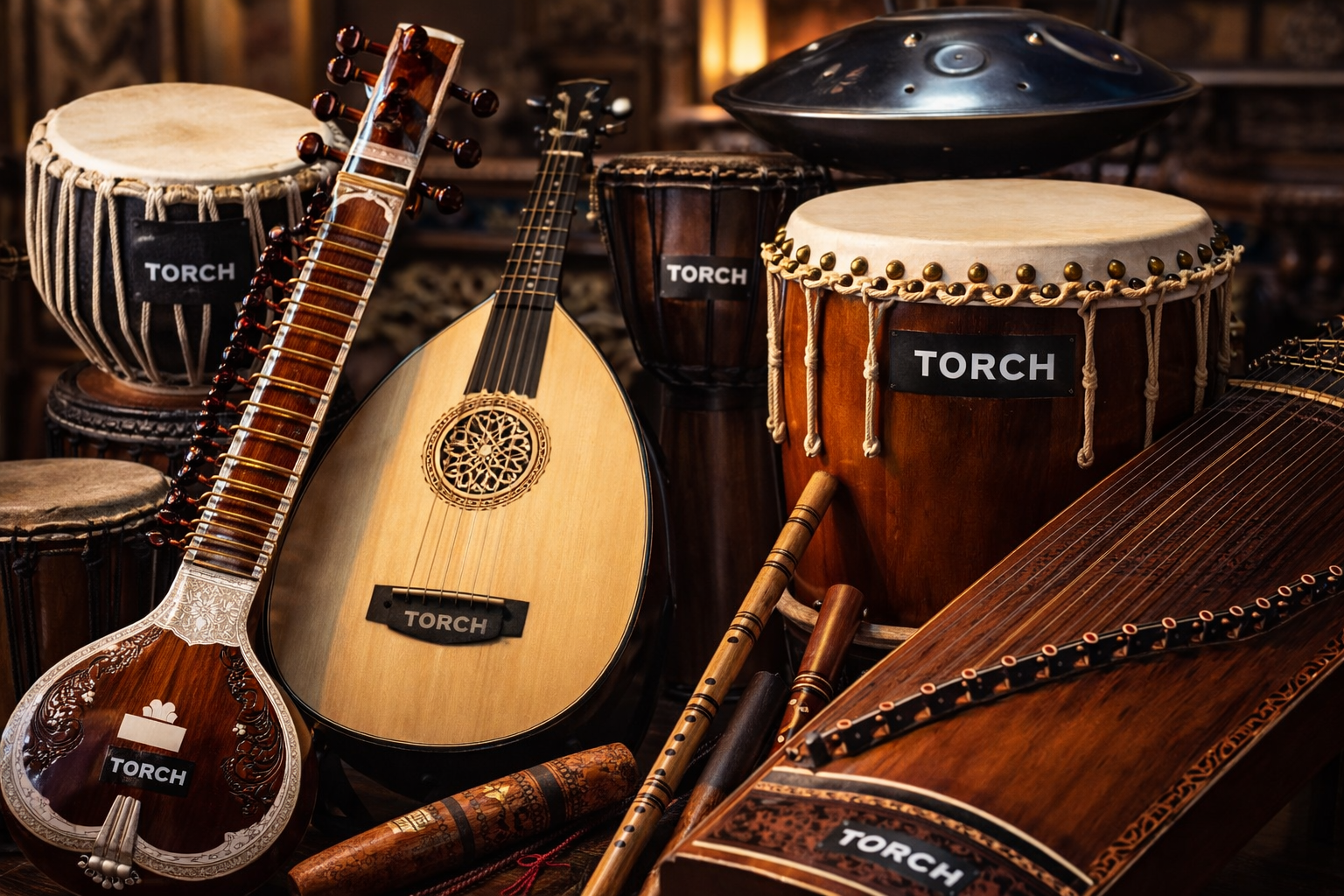
A collection of world and ethnic instruments — Sitar, Koto, Marimba, Mbira, Duduk, Tabla, Steel Pan, Gamelan, and more.
Each preset captures authentic timbres and playing characteristics of global musical traditions.
Full MIDI input support — play live or sequence these instruments in the Piano Roll.
🔬Torch Physical Modelling Synth
Torch Physical Modelling Synth
Uses physical modelling synthesis to simulate real acoustic instruments — string resonance, air column behavior, body resonance.
Models include: plucked strings, bowed strings, brass, woodwind, and struck percussion — all computed in real time.
Parameters let you shape the physical properties: string stiffness, bow pressure, embouchure, mallet hardness.
Use SAVE / LOAD / BUILD to manage and commit your model configurations.
Note: Physical modelling is CPU-intensive. For best results, keep other instruments minimized when using this instrument at high polyphony.
Recording Audio & MIDI
Capture your performance
🎙Record Audio (Mic or Line-in)
1
In the Arrangement, click the R button on a track header to arm it for recording. The button glows red when armed.
2
TORCH DAW requests microphone permission once at startup — click Allow. It won't ask again during the session.
3
Press Spacebar or the Play button. Audio is captured from your mic or audio interface in real time.
4
Press Spacebar again to stop. A clip appears on your track automatically.
Tip: Connect an audio interface (like SSL) for professional quality recording. TORCH DAW captures whatever device is set as your system default input.
🎹Record MIDI
1
Connect your MIDI keyboard (KONTROL S61 MK3, Maschine MK3, etc.). Devices are detected automatically.
2
Press R to arm recording, then Spacebar to play. Every note, velocity, and CC message is captured.
3
Stop playback — your MIDI clip is placed on the arrangement track with all note data preserved.
4
Double-click any MIDI clip to open it in the Piano Roll and edit individual notes, timing, and velocity.
MIDI Devices & Routing
Connect your hardware
🔌Connecting MIDI Devices
1
Plug in your MIDI device (keyboard, controller, interface) via USB before opening TORCH DAW.
2
The browser requests MIDI access automatically. If prompted, click Allow.
3
All detected devices are listed in the console (F12) and in File → Devices in the menu bar.
4
Every MIDI input routes automatically to the Synth and the MIDI Recorder — no routing setup needed.
Supported: KONTROL S61 MK3 (Main, DAW, Ext), Maschine MK3, SSL V-MIDI Ports 1-12. Any class-compliant USB MIDI device works.
🎛Computer Keyboard as MIDI
White keys: ASDFGHJ
Black keys: WETYU
Click inside the Synth window first so keyboard events register correctly.
Piano Roll
Edit notes with precision
🎵Opening & Using the Piano Roll
1
Click Piano Roll in the module tabs, or right-click a MIDI clip in the Arrangement and choose Open in Piano Roll.
2
The piano on the left shows all 88 keys. The grid to the right is your note canvas — each row is a pitch, each column is time.
3
Draw notes: Click the Pencil tool, then click and drag on the grid to place a note.
4
Delete notes: Click the Eraser tool, then click a note to remove it.
5
Chord Library: Select a chord type and click a key — the full chord is placed automatically.
Tip: Use the Quantize (Q-Groove) button to snap notes to a grid. Start with 1/16 for most music.
Step Sequencer
Build beats and patterns
Building a Beat
1
Open the Sequencer module from the tabs at the top.
2
Each row is a track (drum or instrument). Click the step buttons to activate beats — lit = plays, dark = silent.
3
Add a sample: Drag any audio file from your computer onto a track row. The step now plays that sound.
4
Change the step count (8, 16, 32, 64) to set pattern length. 16 steps = one bar at typical settings.
5
Press Spacebar to preview your pattern. It syncs to the main transport automatically.
Tip: Add a Kick on beats 1 and 3, Snare on 2 and 4 — that's the foundation of most beats. Build from there.
Torch Synth
Software synthesizer — see also the Instruments section for all 10 instruments
🔊Playing Torch Synth
1
Open Torch Synth from the module tabs. Click any key on the on-screen keyboard or use your MIDI device.
2
Select a preset from the dropdown in the title bar — Lead, Pad, Bass, Pluck, Organ, Bell, Arp.
3
Adjust oscillator waveform: sine, square, saw, triangle, or noise. Layer a sub oscillator for depth.
4
Shape the sound with ADSR (Attack, Decay, Sustain, Release) and the resonant Filter.
5
Use the LFO to add movement: vibrato on pitch, tremolo on amplitude, or sweep the filter cutoff.
6
Click SAVE to store your preset, LOAD to recall it, and BUILD to apply all current settings.
Tip: All TORCH instruments respond to MIDI in real time — your hardware keyboard is always live.
Mixer & Channel FX
Mix and process every track independently
🎚The Mixer
Open the Mixer from the module tabs. Each track in your Arrangement has its own channel strip.
Each channel has: Volume fader, Pan knob, Mute (M), Solo (S), and Record Arm (R) buttons.
A Master channel at the far right controls the overall output level and has its own master FX chain.
New tracks added to the Arrangement automatically appear in the Mixer — no manual routing needed.
Mixer Channel FX
1
Each Mixer channel has 7 per-channel effects slots: EQ, Compressor, Reverb, Delay, Limiter, Tape Delay, Tape Saturation.
2
Click any effect slot to open its dedicated floating control window.
3
In the effect window, click the POWER button to activate. The slot border lights up when the effect is active.
4
Each effect window is draggable — click and drag the title bar to reposition it anywhere on screen.
5
Channel effects are independent per channel — EQ settings on Channel 1 have no effect on Channel 2.
Tip: Use the EQ to carve space for each instrument, Compressor for dynamics control, and Reverb/Delay for spatial depth.
🎛Channel Effect Details
EQ
Multi-band parametric equalizer. Shape the frequency content of any channel — boost presence, cut mud, add air.
COMP
Compressor with Threshold, Ratio, Attack, Release, and Makeup Gain. Tighten dynamics on drums, vocals, bass.
VERB
Reverb with Room Size, Damping, Wet/Dry, and Pre-delay controls. Add space and depth.
DELAY
Delay with Time (sync to BPM), Feedback, and Wet/Dry. Classic echo and ping-pong effects.
LIM
Limiter with Ceiling and Release. Transparent peak control — prevents clipping on any channel.
TAPE DLY
Tape-style delay with warmth, flutter, and saturation characteristics for vintage echo sounds.
TAPE SAT
Tape saturation adds harmonic distortion, warmth, and gentle compression — great for gluing a mix together.
FX Rack
Master effects chain — applied to the entire mix output
Using the FX Rack
1
Open FX Rack from the module tabs. Five master effect units are shown: EQ, COMP, VERB, DELAY, LIM.
2
All units start OFF. Click the ⏻ PWR button on any unit to activate it — the button turns aqua green when on.
3
Turn the knobs to adjust each effect in real time. Changes are applied instantly to the master output.
4
Reorder effects: Click and drag the left rack ear (bolt strip) to move units — the signal chain updates immediately.
Signal chain: All tracks → Mixer → FX Rack (active units in order) → final output. The FX Rack is your master bus processing.
Arrangement Window
Your song timeline
📐Working with Tracks & Clips
1
Click + Track in the toolbar to add a new MIDI or Audio track. It also appears in the Mixer automatically.
2
Use the ✏ Draw tool to draw clips on the timeline. Click and drag across empty space to create a region.
3
Use ▣ Select to move clips by dragging them. Use ✂ Cut to split a clip at the cursor point.
4
Right-click any clip for options: Duplicate, Delete, Split, Open in Piano Roll.
5
Drag loops or samples from the Browser panel directly onto a track to place them instantly.
🔁Loop Region
1
Set START and END bar values in the transport bar (click them to edit).
2
Click the LOOP button in the transport bar to activate looping. A cyan highlight appears on the ruler and grid.
3
Playback will loop between the start and end markers automatically.
Transport Controls
Control playback and timing
Play, Stop, Record
Spacebar — Play / Stop toggle
R — Arm / disarm recording
Transport buttons: ⏮ ◀◀ ▶ ⏹ ● REC — standard DAW controls
🎚BPM — Set Your Tempo
1
Click the BPM display in the transport bar to open the BPM popup.
2
Drag the slider or click a preset tempo (80, 90, 100, 110, 120, 128, 140, 160).
3
Type a value directly and press Enter. Range is 40–300 BPM.
📏Setting Bars (Song Length)
1
Click the START or END bar numbers in the transport to edit them.
2
These set the loop region and the length used for rendering.
🥁Metronome
1
Click the METRONOME label in the transport bar to toggle it on or off.
2
When on, you hear a click on every beat. Beat 1 of each bar has a higher-pitched accent click.
Render & Export
Export your finished track
Exporting to WAV or MP3
1
Go to File → Render Audio or click the Render tab in the modules.
2
Choose WAV (lossless, full quality) or MP3/WEBM (compressed, smaller file).
3
Set a filename for your export. It pre-fills from your project name.
4
Check the save location. If you set a folder (File → Set Save Location), the file goes there directly. Otherwise it downloads.
5
Click RENDER TO FILE. The progress bar shows encoding status. Your file is saved when it reaches 100%.
Tip: Make sure your arrangement is playing back correctly before rendering. The render captures the live audio output including all effects.
Save & Sessions
Never lose your work
💾Setting Your Save Location
1
On first launch, a dialog appears asking you to Choose Save Folder. Click it and select a folder on your computer.
2
This location is saved permanently in your browser. You never have to set it again.
3
To change it: File → Change Save Location.
📂Saving Your Session
Ctrl+S — Quick save (uses project name)
File → Save Session — Prompts for a project name, saves to your folder
File → Save Session As... — Always prompts for a new name
Ctrl+O — Open a saved .torch session file
🔄Auto-Save
TORCH DAW auto-saves every 60 seconds whenever changes are detected. A toast notification confirms each save.
Auto-saves go to your set folder AND to browser storage as a backup.
To restore an auto-save: File → Restore Auto-Save.
Real-Time Collaboration
Make music with others — live, from anywhere
🌐What is TORCH Collaboration?
TORCH DAW includes built-in real-time collaborative sessions — multiple producers can work on the same project simultaneously from different locations.
All session state — arrangement, instruments, mixer settings, transport position — is synchronized across all connected collaborators.
Collaboration is powered by TORCH_COLLAB, the built-in WebRTC-based peer-to-peer signaling system.
🚀Starting a Collaboration Session
1
Go to File → Start Collaboration or click the COLLAB button in the toolbar.
2
Click Create Session — a unique Session ID is generated. Share this ID with your collaborators.
3
Collaborators open TORCH DAW, click Join Session, and enter your Session ID to connect instantly.
4
Once connected, all actions (add track, move clip, change BPM, play/stop) are mirrored in real time on all connected instances.
📹Video Collaboration Panel
When a session is active, a floating video panel appears automatically showing up to 4 video feeds in a 2×2 grid.
Your own camera feed appears in the top-left tile. Each peer's feed appears as they join.
The panel is draggable — click and drag the title bar to reposition it. Click to minimize, to close.
The panel is resizable — drag the bottom-right corner grip to resize it.
Privacy: Camera/mic access is requested once at session start. Video data is sent peer-to-peer — no recording, no server storage.
🔒Permissions & Privacy
Microphone, camera, and MIDI permissions are requested once per session — the browser prompt will not appear again after granting.
If you denied a permission previously, go to your browser's site settings to re-enable it.
All collaboration data travels peer-to-peer via WebRTC — not stored on any server.
Browser & Samples
Find and use sounds
📁The Browser Panel
1
The Browser is on the left side of the Arrangement window. It has three tabs: PLUGINS, SAMPLES, USER.
2
PLUGINS tab: Drag X-Sampler Pro, Beat Machine, or Step Sequencer directly onto an empty track area to create a new instrument track.
3
SAMPLES tab: Browse your built-in sample library. Click to preview, drag onto a SEQ track row or Arrangement track to use.
4
USER tab: Access files from your computer's hard drive. Drag audio files from your finder/explorer window directly into TORCH DAW.
🎞Dragging Loops & Samples
1
Open your computer's file manager (Finder on Mac, Explorer on Windows).
2
Drag any WAV, MP3, OGG, FLAC, or AIFF file directly into the Arrangement window — drop it onto a track row.
3
You can also drag audio onto the Synth window to load it as a sampler instrument — it maps across all 88 keys.
4
Drop audio onto a Sequencer track row to assign that sound to the step buttons.
Tip: For a full sample library, drag your own loops folder into the USER tab. Organize by genre or instrument type.
External MIDI & VST Support
Connect TORCH DAW to Kontakt, FL Studio, Ableton & more
🔌What is External MIDI Routing?
TORCH DAW can send MIDI directly to any VST instrument — Kontakt, Omnisphere, Serum, your DAW — using virtual MIDI cables installed on your system.
You can also capture the audio back from those VSTs using a virtual audio cable, monitor it live, and export it as a WAV file.
This turns TORCH DAW into a professional MIDI controller + recorder for your entire studio setup.
Signal chain: TORCH DAW → Virtual MIDI cable → Kontakt/VST → Virtual Audio cable → TORCH DAW (monitor + record) → Export WAV → Drop into your DAW timeline.
💿Step 1 — Install Virtual Drivers (once)
Win
MIDI: Download and install loopMIDI (free, tobias-erichsen.de). Open it and click + to create a new virtual port. Name it anything — e.g. "TORCH MIDI".
Win
Audio: Download and install VoiceMeeter Banana (free, vb-audio.com). It creates virtual audio input/output cables on your system.
Mac
MIDI: Open Audio MIDI Setup (in Applications → Utilities). Click Window → MIDI Studio. Double-click IAC Driver and tick "Device is online". No download needed.
Mac
Audio: Download and install BlackHole 2ch (free, existential.audio). It creates a virtual audio cable between apps.
Tip: Install these drivers once and they stay available every session. You only need to do this setup step one time.
🎛Step 2 — Configure Kontakt / Your VST
1
Open Kontakt (standalone or in your DAW). Go to Options → MIDI tab.
2
Set the MIDI Input to your virtual MIDI port: "loopMIDI Port" (Windows) or "IAC Driver Bus 1" (Mac).
3
Set Kontakt's audio output to your virtual audio cable: "VoiceMeeter Input" (Windows) or "BlackHole 2ch" (Mac).
4
Load a Kontakt instrument. You're now ready to receive MIDI from TORCH DAW and send audio back.
🎹Step 3 — Add an External MIDI Track in TORCH DAW
1
In the Arrangement, click + Track in the toolbar.
2
Click 🎹 MIDI Track, then select 🔌 External MIDI from the sub-menu.
3
The External Routing panel opens automatically. Under MIDI OUTPUT, select your virtual port from the dropdown — e.g. "loopMIDI Port" or "IAC Driver Bus 1".
4
You can also reach this panel any time from View → 🔌 External Routing, or click the ROUTE button on the track header.
5
Add as many External MIDI tracks as you need — one per VST instrument. They all route through the selected port.
MIDI Channel: Use the Channel dropdown to force a specific MIDI channel (1–16) or leave on "All Channels" to pass notes through unchanged. Useful if Kontakt has multiple instruments on different channels.
🎧Step 4 — Capture Audio from Kontakt
1
In the External Routing panel, click ↺ REFRESH to scan your audio devices.
2
Under AUDIO INPUT, select your virtual audio cable: "VoiceMeeter Output" (Windows) or "BlackHole 2ch" (Mac).
3
Click ▶ MONITOR ON to hear Kontakt through your speakers in real time.
4
When ready to capture, click ● REC. Play your performance. Click ■ STOP REC when done.
5
Click ⬇ EXPORT WAV to download your recording. Drag it directly into Ableton, FL Studio, Logic, or Pro Tools.
Quality tip: Your recording quality is as good as Kontakt's output — full 44.1kHz / 48kHz stereo. The browser captures whatever Kontakt produces with zero additional processing.
Full Signal Flow Summary
VKEYS / Piano Roll / MIDI Keyboard → TORCH DAW internal engine
TORCH DAW → Virtual MIDI cable (loopMIDI / IAC Driver)
Virtual MIDI cable → Kontakt / VST Plugin (plays the sound)
Kontakt audio out → Virtual Audio cable (BlackHole / VoiceMeeter)
Virtual Audio cable → TORCH DAW External Routing (monitor + record)
TORCH DAW → Export WAV → drag into your DAW timeline
Keyboard Shortcuts
Work faster
Global Shortcuts
Spacebar — Play / Stop
R — Arm / Disarm Record
Ctrl+Z — Undo
Ctrl+Y — Redo
Ctrl+S — Save Session
Ctrl+O — Open Session
Ctrl+N — New Project
Esc — Close open menus / popups
🎹Computer Keyboard — Synth
White keys: A S D F G H J
Black keys: W E T Y U
⟳ Real-time Collaborate
Room Code
Not connected
⚡ Audio Device Settings
Device
No device selected
Device
Buffer Size
Sample Rate
Not running — click Apply to start
Detecting…
Native mode: naudiodon → ASIO (Win) / Core Audio (Mac) — lowest latency
Fallback mode: Chromium Web Audio — still good, ~10–15ms
🔌 Plugin Browser
No folder selected
No WASM plugins loaded
Browse a folder containing .wasm files
Host
Not running
Click Scan to find installed plugins
Click Scan to find installed VST3 / CLAP plugins
Native VST3/CLAP plugins (Kontakt, Serum, Omnisphere…) require the
TORCH Plugin Host companion app.
Download: github.com/torchdaw/plugin-host

WASM plugins (Cmajor, FAUST, Rnbo) work without it, right now.
TORCH // PATTERN VIEW
TORCH_PV
TORCH // PATTERN VIEW
PATTERN BANK
PATTERN GRID — BAR 1–16 — CLICK TO ACTIVATE · PRESS ADD TO ARRANGEMENT TO PRINT
NO SEQ TRACKS OPEN SEQUENCER AND ADD TRACKS — THEY APPEAR HERE AS ROWS
001.01.000
TORCH // EDITOR VIEW
● TORCH COLLAB SESSION
👤
YOU
👤
👤
👤